Using Icons in Your Visual Vocabulary

by qrayon 3. May 2013 17:32

Inkflow banner 325x50

One of the benefits of freeform digital note-taking tools such as Inkflow is that they allow you to easily mix left-brain thinking (words) with right-brain thinking (pictures). Pictures have actually been a part of written language for a long time. Billions of people write using languages derived from pictographs (e.g. Chinese or Korean); what we would call icons today.

The benefit of icons is that they allow you to compress a lot of meaning and even emotion into a simple picture. You don’t need any artistic skill to use icons effectively.

Building your own Icon Alphabet

By developing a set of icons to use in your own notes, you can more quickly capture and combine key ideas. The trick is to come up with icons for concepts that you use frequently. Here’s how to get started and build your icon vocabulary over time:


1. Look at your general shorthand

Guess what, you already use icons everyday: Think of all the shorthand you use, such as checkmarks, stars, and arrows. The cool thing is that these icons are re-usable. E.g. a star can represent a favorite item, or an important point, or well, a star.

You can easily customize these icons with your own special meaning. For example, you might draw a circle around a checkmark, and use that icon to represent important new ideas that you learned.

Common glyphs


2. Think about common concepts

The next set of icons that you might look at developing are for common, everyday concepts. Things like “Home”, “The World”, times of day, or places such as “cities” or “schools”:

Common concepts

You’ll find that using these simple icons in place of words much more evocative. They are especially useful as titles or to headline groups of ideas.


3. Create domain-specific icons

Finally, think about the major concepts that you frequently use in your field of work, especially the more complex ones. For example, you could represent “The Environment” with a tree. You can also reuse your icons. E.g. Use the city icon to also represent a business or corporation:

Domain specific concepts

When you iconize concepts this way, you’ll find that it’s easier to think of them as distinct entities or actors. This makes mapping out the relations between entities easier and more engaging. For example, you could use a set of icons to map out the interplay between governments, businesses, and the environment. This is useful both when brainstorming, and for communicating complex concepts to others.


Whole Brain Thinking

Icons not only help you capture ideas faster, but think better too, because you are working with a richer set of meaning, and engaging both sides of your brain at the same time. You will notice a difference in how your brain processes concepts represented by icons vs. just words. The thing is, you don’t need to pick one over the other. You can combine both to think more effectively.

What other ways have you found to leverage icons effectively? Love to hear your comments. Feel free to leave them below or send feedback.

Tags:

Inkflow | Tips & Tricks

Introducing Inkflow 2.0: Text, Photos, and a Whole Lot More!

by qrayon 20. February 2013 15:54

Inkflow banner 325x50

Inkflow 2.0 is now live in the App Store! This is a major upgrade, and brings several popularly requested features:

- Text entry via the keyboard

- Insert and layout photos on your pages

- Paper stationery


QuickStart Guide Plus


Text, Photos, and Ink, Working Seamlessly Together

While Inkflow’s primary goal remains to allow expressive writing and drawing with our proprietary ink engine, there are times when its easier to type in text with the keyboard. Likewise, you can now use photos to better capture the essence of an idea, or to more powerfully convey a story.

You can select photos, text, and ink together, and resize them as a group.

Paper StationeryStationery

The default template now gets a subtle paper texture, and you can easily switch the background of your books from the actions menu.

The Plus Edition also includes a tool to create custom backgrounds from your photos. This is great for creating beautiful custom photo stationery. Also, if the built-in stationery choices don’t quite fit your needs, you can make your own: Just create an image using your favorite art program (you can even draw your own stationery with Inkflow), and save it to your iPad’s camera roll.

New Ways to Be Creative

These new features dramatically expands the scope of what you can do and create with Inkflow, without sacrificing any fluidity or ease of use.

Brainstorm in new dimensions, take long notes in class, create beautiful photo journals, even layout and publish PDF booklets.

Day at the ZooClass Notes

New Living RoomGallery


A Shout Out to Teachers

We draw inspiration from the creative work of our users, but are especially thrilled that our Apps have found good use in classrooms all over the world. Remember: Qualified schools, colleges, and other educational institutions can get Inkflow Plus via Apple’s Volume Purchase Program. Contact your school’s Apple representative for more details.


Thanks for Your Support!

We hope you enjoy these new features. As always, do consider taking a moment to rate the new version in the App Store. Also, do drop a line to let us know how you are using Inkflow in your work, and what else you might like to do next. We appreciate all your feedback.

Get Inkflow 2.0 from the App Store.

Tags:

Inkflow

Default Inkflow color palette

by qrayon 9. January 2013 11:50

Inkflow banner 325x50

We’ve received a number of queries about how to restore the color palette to its original settings. To edit a color, first pin the palette open, select a color, then tap on it again. Now tap on the #RRGGBB value indicator to edit it directly.

RGB editor

Here are the RGB values of the default palette:

Color RGB Value
Black 000000
Blue 558ED5
Red D99694
Green C3D69B
Purple B3A2C7
Light Blue 93CDDD
Orange FAC090
Taupe C4BD97

Now you can customize your palette to your heart’s content without worrying about how to get back if you want.

If you’re looking for a great tool to make your own coordinated color palettes, check out colorschemedesigner.com.

Enjoy!

Tags:

Inkflow

Inkflow v1.6 Released: iPad Retina Ink

by qrayon 9. January 2013 11:33

Inkflow banner 325x50

We’re pleased to announce that v1.6 of Inkflow and Inkflow Plus are now available in the App Store as a free upgrade for existing users.

This update takes advantage of the iPhone 5’s larger screen and brings retina ink support to the iPad with iOS6. This results in dramatically clearer lines on devices that support it.

Inkflow retina vs regular


Adding retina support to the iPad wasn’t a matter of just flipping a few bits. Supporting the ginormous resolution means dealing with 4x the pixels and memory as before, with the same hardware. We had to engineer a number of performance improvements to maintain the same silky smooth drawing experience you expect. It took a little longer than expected, but we think you will be pleased with the results.

Even if you are using a device without a retina screen, you should notice a few performance improvements as well.

Please Rate

As always, each App version gets a separate rating. if you like the update, please consider taking a moment to rate this version in the App Store. We really appreciate it!

We also love to hear from folks who use our Apps. Please feel free to drop us a line to let us know how you are using Inkflow, or if there’s a particular feature you would like to see in the future.


Download the update from iTunes.

Tags:

Inkflow

Inkflow v1.4 Released: Export and print books

by qrayon 3. August 2012 09:47

Inkflow banner 325x50

Following on the heels of v1.3, which brought the Plus features to the iPhone and iPod Touch, is v.4. This update cleans up the Actions menu a little and adds the ability to export PDF books and JPG pages to other apps and to print.

Preview and Exporting

Tap on “Export” from the Actions menu, then choose the format you want. This will open a preview. From there, tap on the send-to button to send the document to another App or to the printer. This allows you to send your work directly to other Apps for post processing or storage. For example, you can send PDFs to the Dropbox App to upload to your online storage. You can even send them to Air Sketch or Air Projector to project wirelessly to a laptop over WiFi.

Export from Inkflow

We hope you like this new feature. Please remember to rate this new version in the App Store! Each version is rated independently, and we really appreciate your five star ratings!

Get the free update in the App Store today.

Tags:

Inkflow

Inkflow 1.3 brings Plus to the iPhone and iPod Touch (and more)

by qrayon 13. July 2012 09:28

Inkflow banner 325x50

Thanks for all the great feedback and reviews in the App Store! Even though we are unable to respond to every email, we read all of them and take your feedback into consideration for future updates. v1.3 is a major update that adds several highly requested features for all existing users:

Inkflow Plus for iPhone and iPod Touch

By far the #1 request has been to bring the Plus Edition to the iPhone. We spent a lot of time redesigning the palette and controls to work well on the smaller screen. Instead of a pop-over, when you tap on the pen button, the palette zooms in on top of the canvas, giving you one-touch access to all the controls, including custom colors, opacity, and different instruments.

Power User Tip: Tap on the #RGB code to enter a hex color directly.

All the other Plus features are also available, including page management (tap on the page number to access this), copy & paste, and unlimited pages for books.

PalettePage Management

All for the Price of One: If you’ve already purchased the Plus Edition for your iPad, you can upgrade again for free on your other devices. Just open the upgrade dialog and tap “Restore”.

Reorganized Toolbar

Probably the first thing you will notice when you upgrade is that we flipped the default layout of the toolbar. The pen and selection buttons are now on the left. Why did we do this? We got some great feedback that the old location of the buttons made two-handed use difficult (for right handed people). After a lot of additional user testing, we agreed that putting the edit controls on the left made more sense. This way, you can keep your left thumb over them to easily switch between the pen and selection tool, or call up the palette, while drawing with your right hand.

This new layout will probably take a day or two to get used to, particularly if you’ve used Inkflow for a while now. We think you will find that it makes using Inkflow more efficient. Don’t fret if you don’t agree (or are left-handed): You can easily change the layout back from the settings dialog (tap the gear icon from the Gallery, and enable left-handed toolbar).

New toolbar:

basic toolbar

Previous toolbar (and new left-handed mode)

Basic Toolbar lefthanded

Plus Edition: Rotate Ink

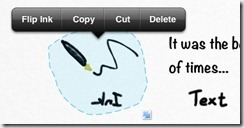
In addition to resizing ink, you can now also rotate it in the Plus Edition by dragging the round rotation handle at the top of the selected ink:

rotate selection

This opens up a whole lot of new possibilities to get creative!


Email Books as PDF

We’ve made sharing your work even easier. Send the whole book as a PDF file from the actions menu. You can still send it as the source Inkflow file to let your friends edit and add to your books.


Email and Save Higher-Resolution Images

In addition, we’ve increased the resolution of page images that are emailed and saved to the camera roll. This makes incorporating high-quality graphics from Inkflow into your workflow much easier.


Tweet on!

Keep tweeting your masterpieces with #myinkflow. We keep an eye on that stream and retweet the stuff we find interesting. It’s great to see the amount of creativity out there. Keep it coming!


Please Rate this New Update

We hope that you are continuing to enjoy Inkflow. If you like the new features in this free update, please take a moment to rate it in the App Store. Each version of an App is rated separately, and your five star ratings help keep the free updates coming. Also, don’t forget to tell your friends about Inkflow. Thanks for helping spread the word!


Download or update Inkflow from the App Store now!

Tags:

Inkflow

Brainstorming with Inkflow

by qrayon 26. May 2012 15:28

Inkflow banner 325x50

While we designed Inkflow to be a useful general purpose tool, its main inspiration is to enhance Visual Thinking: Effectively using both words and pictures to think and communicate better. There are many great books on this subject (see below), and people have been brainstorming using pen and paper or whiteboards and sticky-notes for a long time. However, the iPad is the ideal tool for visual thinking, and we designed Inkflow to make full use of it.

But Wait a Minute, I Can’t Draw!

The most common misconception about visual thinking is that it’s the exclusive domain of graphic artists and “creatives”. Well, in case no one has told you yet, you are creative. We all are. All of us already think visually in our minds, and all of us have more than enough drawing skill to use tools like Inkflow effectively.

Brainstorming Like You’ve Never Seen Before

Probably the simplest use of Inkflow is for brainstorming. Let’s say you are a high school teacher and want to come up with ideas for lesson plans for your class. The first thing to do is to put something quickly on the canvas. If you are having trouble, start with yourself:

IMG_0067

Once you have something down, however simple, the canvas becomes a lot more inviting for ideas.

Now, put down your goals. You want to make a lesson plan, but that doesn’t sound quite inspiring enough. Why do you want a lesson plan? What’s the bigger picture? Well, you are a teacher because you want to help build a better society by educating students. Let’s create a couple doodles for that:

IMG_0059

Ok, that’s a little more motivating! This is important stuff! What else? Well, you are a forward thinking teacher, and you want to leverage Technology and Media in your lessons. Let’s add those:

IMG_0060

And expand on them (by the way, you can click or tap on these pictures to see a larger version):

IMG_0061

Notice that your little brainstorming doodle is starting to take on some structure. You have your high level goals on top, and various concepts emerging in a tree-like structure. If you’ve done text outlines or mind-maps before, this should look familiar. However, the addition of the little doodle makes this a lot more mentally stimulating and fun. You’ll find that more of your brain is engaged vs. looking at a boring text file. Just compare the picture above to this:

Brainstorm text

Once you’ve tried visual thinking, you’ll find it hard to go back.

Ok, now that you have a few key goals and concepts down, look for patterns and connections in your drawings. Are there other elements you want to add? Are there interesting relationships between concepts? Could they be rearranged? Do some concepts spark other ideas?

Here’s where visual thinking can be super powerful. In this example, you might look at the TV and News doodles, and might be reminded that there’s a Presidential Election coming up, which might be an interesting topic for your students. Among the major issues are the Economy and Healthcare. You decide to drill in more into Healthcare, which involves Doctors, Hospitals, and Insurance Companies.

IMG_0068

By now you are probably already coming up with several ideas for lessons and activities for your students. But with more concepts on the page, there are even more new connections you could form.

Thinking more about the Economy, your eye might also catch sight of Social Networks on the left side of the page. Didn’t Facebook just issue an IPO, and weren’t there some interesting controversies about it in the news recently? Doodling and thinking more about that, you might add a whole new branch on Facebook, the Stock Market, plus the role of Investment Banks and Analysts.

IMG_0064

You now have a rich set of concepts to combine and expand upon. You might rearrange them to see if there are other connections, or copy them into new groups to capture ideas. For example, the genesis of two lesson plans you might come up with are:

1. Social Networks + Doctors + Insurance: Ask students to poll their friends and family in their social networks to see how satisfied they are with their Doctors and Insurance. What are the major concerns people have?

2. The Economy + Facebook IPO + News + Analysts: Ask students to research recent news articles on the Facebook IPO. What are the main issues? Who are the main players? Why do they think the stock price didn’t perform as expected?

IMG_0065IMG_0066

Using Our Visual Minds

In just a few minutes, you have created a powerful and reusable template for thinking about the problem you were trying to solve. Try coming back to it in a day or so, you’ll see new connections and ideas you didn’t the first time. Try adding new concepts, even seemingly unrelated ones. These can spur unanticipated ideas.

Why does this technique work so well? A large part (if not most) of our brains is devoted to visual processing. We are naturally visual creatures. Even when you are thinking with your eyes closed, you are involving your visual neurons. We dream in pictures, not text. By drawing simple pictures and moving them around with your fingers, you are mirroring the processing that happens in your mind. This allows your brain to focus on being creative, and not worry about forgetting a concept that you’ve already captured on your iPad.

Furthermore, the little pictures stimulate your mind differently from just the words. They spur you to make connections you wouldn’t have with words alone. Color, while not strictly necessary, adds yet another dimension.


Further Reading

Brainstorming just scratches the surface of what’s possible with visual thinking. We highly recommend the following books, which are packed with tools and techniques you can apply right away:

Blah, Blah, Blah by Dan Roam: Gives you a simple yet powerful framework for thinking and communicating visually. If you are at all interested in Visual Thinking, get this book! In case you need more convincing, you can also find some videos by Dan online.

Business Model Generation by Alexander Osterwalder and Yves Pigneur: If you are a business consultant or manager, this is a great book for establishing a practical template for thinking about business strategy.


We Love to Hear From You!

If you are new to visual thinking, we hope you’ve enjoyed this little introduction. Play with these ideas and techniques, and form your own. There’s no one best way to think or one style to draw with. Your brainstorming pictures will undoubtedly look very different from the ones above. Make them personal, and use the tools in the way that works best for you.

Please let us know if you have any questions or comments. We also love to hear about how you are using Inkflow and if you have any feedback for making it more useful for you. You can contact us using the feedback form.

Thanks and Happy Thinking!

Tags:

Inkflow

Introducing Inkflow: The App for Visual Thinking

by qrayon 12. May 2012 17:28

Inkflow banner

Inkflow is now available for Free download from the App Store. Go get it!

Inkflow: Thinking Tools

Visual Thinkers Rejoice!

Inkflow works like a word-processor for visual thinking. Capture your ideas as easily as with pen and paper, then arrange and reorganize them with your fingers.

If you're like us, you've been looking hard for the perfect (th-)inking App. Yet something always seems to be missing, be it speed, flexibility, or just plain elegance. Well, we think we've finally cracked it.

Ultra Smooth Ink
Inkflow's ink feels like a really smooth fountain pen. Great for expressive writing or sketching.

Fluid Resizing and Rearranging

Effortlessly scale or move anything you select. This will change the way you think about ink: Jot down a list of ideas or concepts then rearrange them to fit into the bigger picture. literally move your thoughts around the page, and assemble big ideas with your fingers. This works great for brainstorming and planning. It's also perfect for prototyping layouts, sketching, and drawing.

Full Resolution Zoom

Zoom and pan with two fingers. Inkflow's ink stays sharp no matter how much you zoom in, so you can add fine details at full quality. It's also lightning fast. No pixelation or lag here. This allows writing and drawing with incredible precision, with or without a stylus.


Did We Mention Free?

Rather than just read bout Inkflow, go ahead and try it out: We've decided to make the Basic Edition of Inkflow completely FREE. The Basic Edition is fully usable, and we intend to keep it that way. It comes with the Fountain Pen with black ink and all the features above. The only real limitation is that books max out at 20 pages each (but you can create as many as you like).

iPhone and iPod Touch Too: Inkflow is best used on the large iPad screen. However, it is a universal app so you can also view and edit books on the go.

If you're looking for more, there is...

Inkflow Plus Edition for iPad
iPad users can upgrade instantly at any time to the Plus Edition to get:

✓ A customizable, full color palette,

✓ Pencil, Eraser, and Paint Brush tools,

✓ Cut, Copy, Paste Ink and Page Management,

✓ Notebooks with unlimited pages.

✓ And more!

The Plus Edition lets you do even more things such as: Painting, cartooning, and brainstorming in full color. Email or Tweet your creations with a couple taps. Learn more in the in-App Quickstart Guide.


The Future of Creativity Software

We strongly believe that the iPad is not just a consumption device. It's a creativity device. Thanks for supporting us in our journey of building creative Apps like Inkflow. We hope you enjoy it!

Download Inkflow from the App Store.

Tags:

Inkflow | iPad

Powered by BlogEngine.NET 1.6.1.0 - based on Old School Theme by n3o Web Designers