
Inkflow user Phil recently asked a question about backing up his over 200 (!) Inkflow books. We thought other users might want to know more about this too.
There are three ways to keep your files safely backed up:
1. If you activated your iCloud account and turned on iCloud backups, your device automatically gets backed up when you charge it. This includes the device settings and all App data (unless you individually turn them off). You can completely restore your device (or a new device) from the iCloud backup in case of a catastrophic failure. This is a good failsafe, but the problem is that it's an all or nothing proposition (i.e. you can't choose to just restore one or two Apps at a time).
2. iTunes backup works in the same was as iCloud backup, but it's to your computer. There's a WiFi backup option, so you don't need to physically connect your phone. This is a good idea, just to have a second backup available.
3. There's a new feature available in Inkflow 3 that activates iTunes File Sharing. This lets you copy individual Inkflow (*.inkflow) files to your computer. To use it, connect your iPad/iPhone/iPod Touch to your computer, and then:
a. Select your device in the iTunes sidebar (View menu \ Show Sidebar).
b. Navigate to the Apps tab, and select Inkflow.
c. Copy the Inkflow files (all of them if you like) to your computer.
You can then copy these files to an external backup disk or cloud backup solution of your choice. To restore them, simply copy them back to the same Apps tab, or to a new device.
This is also a good way to “archive” older books that you don’t need to carry around on your device all the time. First backup the files, then delete them from the device.

Vittle also supports iTunes file sharing. You can similarly copy project files (*.vittle) and their associated video clips to your computer, and back them up in the same way.
Bonus Trick: Backing up to Dropbox Directly
There’s one more way to backup individual files in Inkflow directly on your iPad or iPhone. In Inkflow 3, we added the ability to export the native .inkflow file. Tap the “Action” toolbar button, select “Export…”, then select the Inkflow format. If you have the Dropbox App installed, you can open .inkflow files with it. When you do, it will prompt you for a folder and then upload the file immediately.
This is a great way to save an important backup of a file when away from your computer.
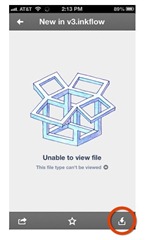 You can also open Inkflow files from the Dropbox App into Inkflow. First view it in the Dropbox App. It will say “Unable to view file”, but don’t worry. Tap the download button (top right on the iPad) and selecting Inkflow from the list. Just be aware that this will create a duplicate copy in Inkflow if a book already exists with the same name.
Create a Backup Plan that Works for You
When it comes to backing up data, having multiple levels of redundancy is a good idea. Pick the combination of options (or all three) that best suits you.