10/14/23
Take Control of your Attention and your Life with your iPhone
In today's fast-paced world, our smartphones have become an integral part of our lives. While they are often associated with distractions, they can also be powerful tools for productivity and personal growth. In this article, we will explore how you can leverage your iPhone to take control of your life, become more productive, and achieve your goals.
How to Be Productive with Your iPhone
Your iPhone can be a double-edged sword when it comes to productivity. On one hand, it's a source of endless distractions, but on the other, it offers a multitude of apps and features that can help you stay on track. To harness its productivity potential:
- Organize Your Home Screen: Rearrange your apps so that the most important productivity apps are easily accessible. This will make it easier to focus on the tasks at hand.
- Use Productivity Apps: There are countless productivity apps available, from task managers to note-taking apps. Utilize these tools to streamline your workflow and keep track of your tasks and goals.
Grab Control of Your Attention
Our iPhones are designed to grab our attention with notifications, social media, and various apps vying for our focus. Regain control over your attention by:
- Turn Off Unnecessary Notifications: Go through your notification settings and disable notifications from apps that don't require immediate attention. This will reduce distractions.
- Set Screen Time Limits: iOS offers a Screen Time feature that allows you to set daily limits for specific apps or categories. This can help you break the habit of mindless scrolling.
Take Control of Your Life
Your iPhone can be a powerful life management tool. Here are some ways to use it to take control of your life:
- Goal Setting: Use the Notes app to jot down your goals, both short-term and long-term. Having them written down makes them more tangible and achievable.
- Daily Reflection: Take a few minutes each day to reflect on your progress and experiences. The Notes app is a great place to maintain a digital journal.
Plan Your Life
Planning is a crucial element of taking control of your life. Your iPhone's Calendar app can be an invaluable tool for this purpose:
- Set Reminders and Appointments: Use the Calendar app to schedule your daily tasks, appointments, and reminders. This way, you'll never miss an important event.
- Time Blocking: Implement time blocking techniques to allocate specific time slots to different tasks. This helps you stay organized and ensures that you allocate time to your priorities.
- You Are What You Think About Regularly
Your thoughts and mindset play a significant role in shaping your life. Use your iPhone to foster a positive mindset:
- Meditation and Mindfulness Apps: Download meditation and mindfulness apps to help you reduce stress and maintain a positive outlook on life.
Use Notes to Focus and Think
Even the basic Notes app on your iPhone can serve as a powerful tool for enhancing your focus and thinking:
- Create To-Do Lists: Use the Notes app to create to-do lists, and check off items as you complete them. This visual progress can be motivating.
- Brainstorm Ideas: When you have ideas, thoughts, or inspiration, jot them down in your Notes app, or in Inkflow. This way, you won't forget valuable insights.
Your iPhone can be a key instrument in taking control of your life and becoming more productive. By carefully curating your app selection, managing your attention, and using built-in features for planning and reflection, you can turn your smartphone into a powerful ally in your personal growth journey. Remember, it's not about the phone itself, but how you choose to use it that makes all the difference in taking control of your life.
Related: Inkflow.
01/28/20
Digital Tools for The Digital Age
We now live in the Digital Age, where more and more of how we work, learn, and play is done digitally. The problem is we are still steeped in an Industrial Age mindset. That is, we hold assumptions and accept limitations that are simply no longer true.
Digital vs. Industrial Age Thinking
The Industrial Age was based on the fact that atoms are hard to move around. Mass has inertia. Value was associated with "stuff". Big, heavy, or fixed things were expensive. Things with no mass were regarded as fluff.
The digital world is based on bits. There is no mass, no space, and no time. The mantra of the Digital Age might well be: Anything, Anywhere, Anytime.
What is the equivalent of mass and inertia in the Digital Age? Change and complexity. Keeping up with constant change and managing compounding complexity are our main challenges today.
The Industrial Age prized efficiency - doing more with less. The Digital Age rewards adaptability - doing things better in different ways. Maximizing new capabilities, and combining them in the right ways to solve the problems at hand.
The epitome of the Industrial Age was the assembly line: specific parts in a specific order, doing the same thing every day. This model of thinking permeated way beyond the factory floor.
The model for the Digital Age is the network: everything and everyone connected to everything else. Infinite combinations allowing for the best possibilities to arise.
A key characteristic of digital bits is that they are perfect: You can make exact copies of them, and those copies can be distributed near-instantaneously, at essentially zero cost.
This allows for infinite scale: anything you can do, you can do 10, 100, a million times greater.
But you can only scale if you work digitally. Give a lecture in person to 100 people, and you will need to give the same lecture again for the next 100 people. However, if you record and publish your lecture online, any number of people can watch it at no additional cost or effort on your part.
How do we plug into these digital powers?
Digital Tools are Our Interface to the Digital World
We may live in the Digital Age, but we are the same physical creatures as before. We rely on tools to adapt to the digital world. Our tools form our interface to the world. They focus our attention and they amplify our impact.
Here's the good news: You probably already have the tools, or you can easily get them.
The main limit is in what we think we can (or cannot) do with the tools we have.
In the Industrial Age, consumption was easy (accessible to the many) but production was hard (controlled by a few).
But in the Digital Age, production is as accessible as consumption.
For example: If you are reading this, you have a computer (or phone or iPad). That same device used to consume can also produce and publish to the world. Not just articles, but books, photos, videos, and even apps.
We shape our tools, and they shape us.
Good tools make us better by facilitating better ways of thinking: fluid and multi-modal thinking that matches the nature of the Digital Age.
They enhance better ways of doing: letting us create the way we prefer, maximizing our ability to express ourselves.
And they make sharing what we do easy: using the best digital media to distribute your work to the most people, or to the right people, amplifying our impact.
Good tools matter.
How We Think About Digital Tools
At Qrayon, we see ourselves as toolmakers. Our focus is building the best tools for the Digital Age.
Industrial Age tools were designed for specialists: you needed weeks of training to operate a movie camera or audio mixer.
Early digital tools followed this pattern: they assumed a high level of technical skill in their users (think Photoshop or After Effects).
Modern digital tools are designed for all of us. They use familiar interfaces and representations for things so you don’t need special training to immediately be productive with them. But (this is the important bit) they are not limited by those representations.
Good tools should be the best of both worlds: as easy to use as the things are are familiar with, and as powerful as the “pro” tools used by specialists.
Digital tools should be a bridge from our Industrial Age mindsets into the Digital Age.
For example, Cardflow represents bits of information as index cards - something we are all instantly familiar with. But you can do things you could never do with physical cards: Connecting them, arranging them with a single gesture, or linking them to web pages.
You quickly realize that these aren't just index cards, but a flexible hyperlinked information system - something that didn't quite exist in the Industrial Age model of the world.
Noteflow looks and works like digital paper. You can write, draw, or type on it. You can even pull in physical notes as digital ink using Inkport. But once in Noteflow, you can easily move and resize things to any level - turning the sheet of paper into a mental canvas for thinking.
Vittle works like a digital whiteboard, but one you can record a video of, and you can also pull in pictures, slides or documents. Use it as you would use a whiteboard in a classroom or meeting, and you instantly create a video you can post online, or share with your colleagues.
When you can do that, you soon realize that you can do it from anywhere. There is less need for everyone to be in the same room at the same time. You become vastly more productive, and so do the people you work with.
The World Turns On
It's still morning in the Digital Age, but things are beginning to accelerate.
Technology changes the terrain of the possible. It makes things that used to be hard trivially easy, and what once was priceless now too cheap to count. It can turn kings into paupers, and empower individuals like never before.
The important question is: what are you going to do with it?
09/23/17
3 iOS11 iPad Productivity Tips
iOS 11 brings huge advancements for productivity on your iPad. Here's how to get the most out of it:
1. The New Files App and Cloud-Documents
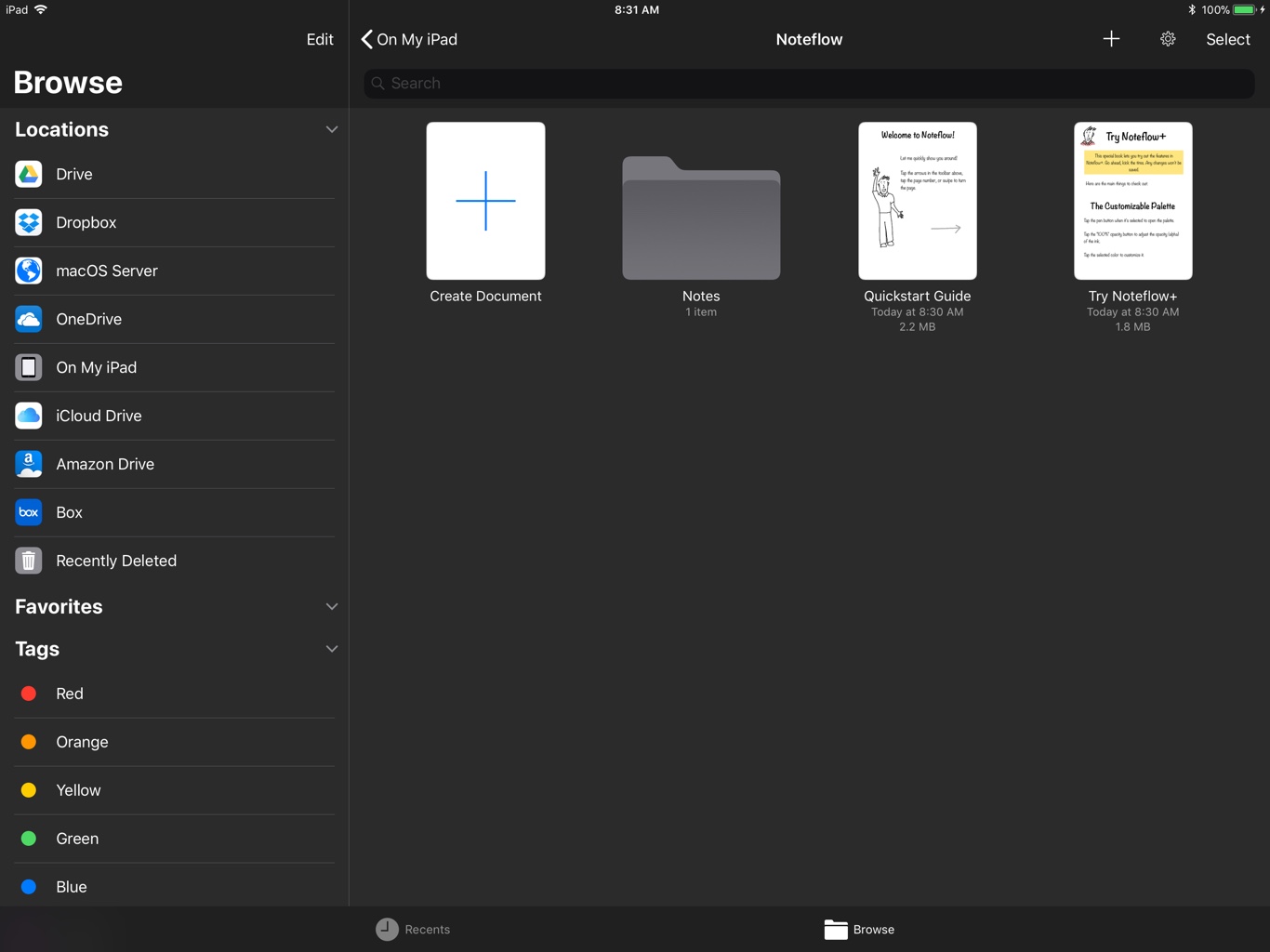
Perhaps the biggest change that says “the iPad is a real computer" is the introduction of a real OS-level file management system. The new Files app is analogous to the Finder on a Mac. It lets you do all the things you would expect: Create folders, copy, move, and delete files, search, and even add color-coded tags.
One very nice ability is to seamlessly manage files across local and cloud storage. If you store a file in iCloud, it is automatically synched across all your devices.
Even cooler is you can now open files from the Files app into their appropriate apps (that support open-in-place), just like on the Mac. And if you open a cloud file, changes are automatically kept in sync.
As third party providers start supporting the full interface, you can store files in other services too (though in our early testing, only iCloud reliably supported all the functions, including open-in place).
To make the most of your new file powers, we recommend storing your documents in iCloud, using a folder structure that makes sense to you.
2. The Dock and Multi-tasking
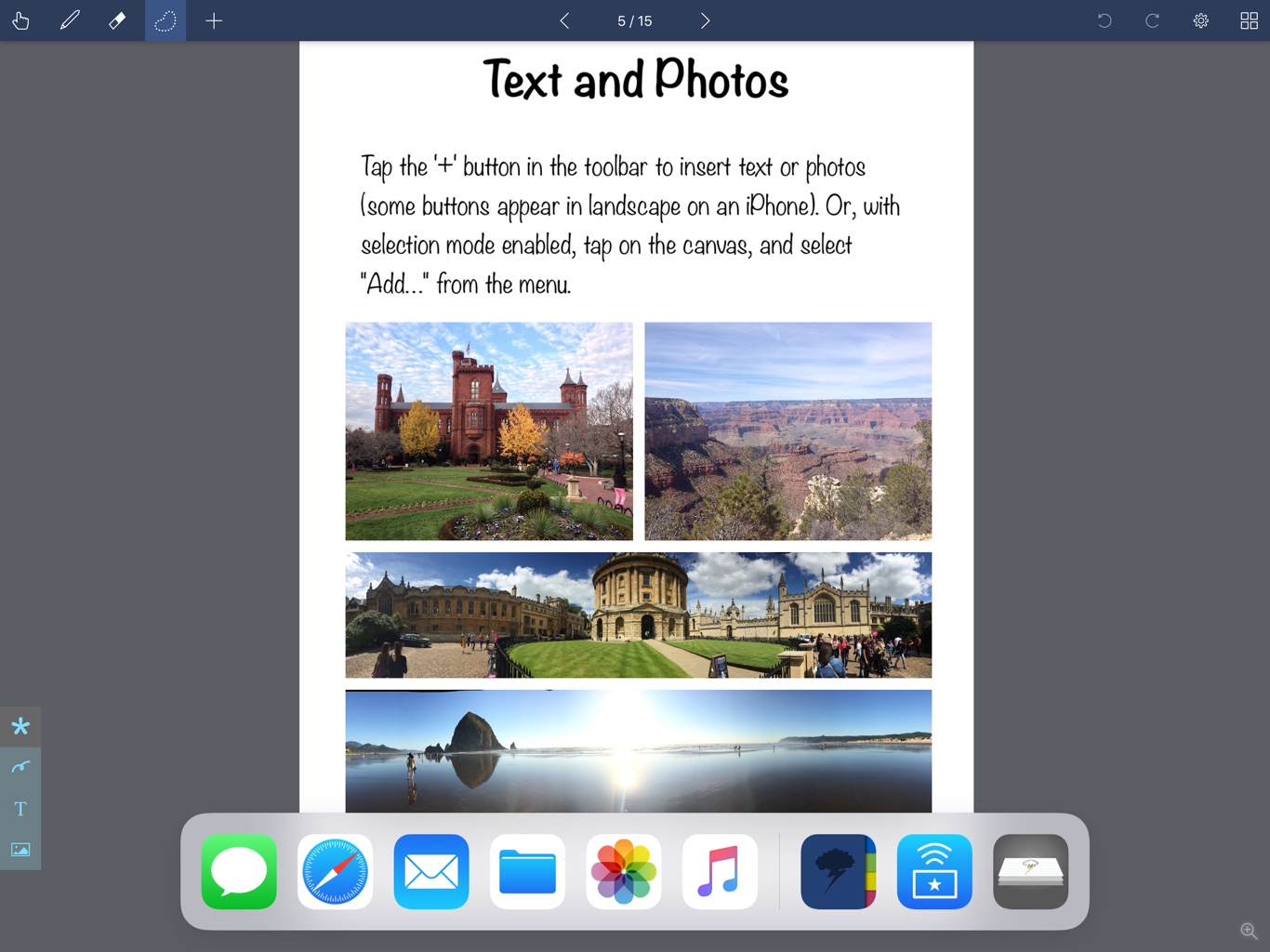
iOS 11 dramatically improves the multi-tasking capabilities of the iPad with the introduction of the dock. Just swipe up from the bottom of the screen to bring it up from apps that support multitasking, and drag an app to the side of the screen to open it in slide-over mode or side-by-side.
Tip: iOS remembers your app pairings, and you can swipe from the right to bring the previous slide-over app back.
3. Drag and Drop
Multi-tasking is made so much more powerful with new drag-and-drop capabilities. Both apps will need to support this, and if they do, you can touch-and-hold on items and drag them from one app to another.
Tip: Perhaps more subtle is the ability to drag multiple items: once you've selected the first item with a tap-and-hold, tap on additional items to add them to the drag, then drop multiple items at once into the target.
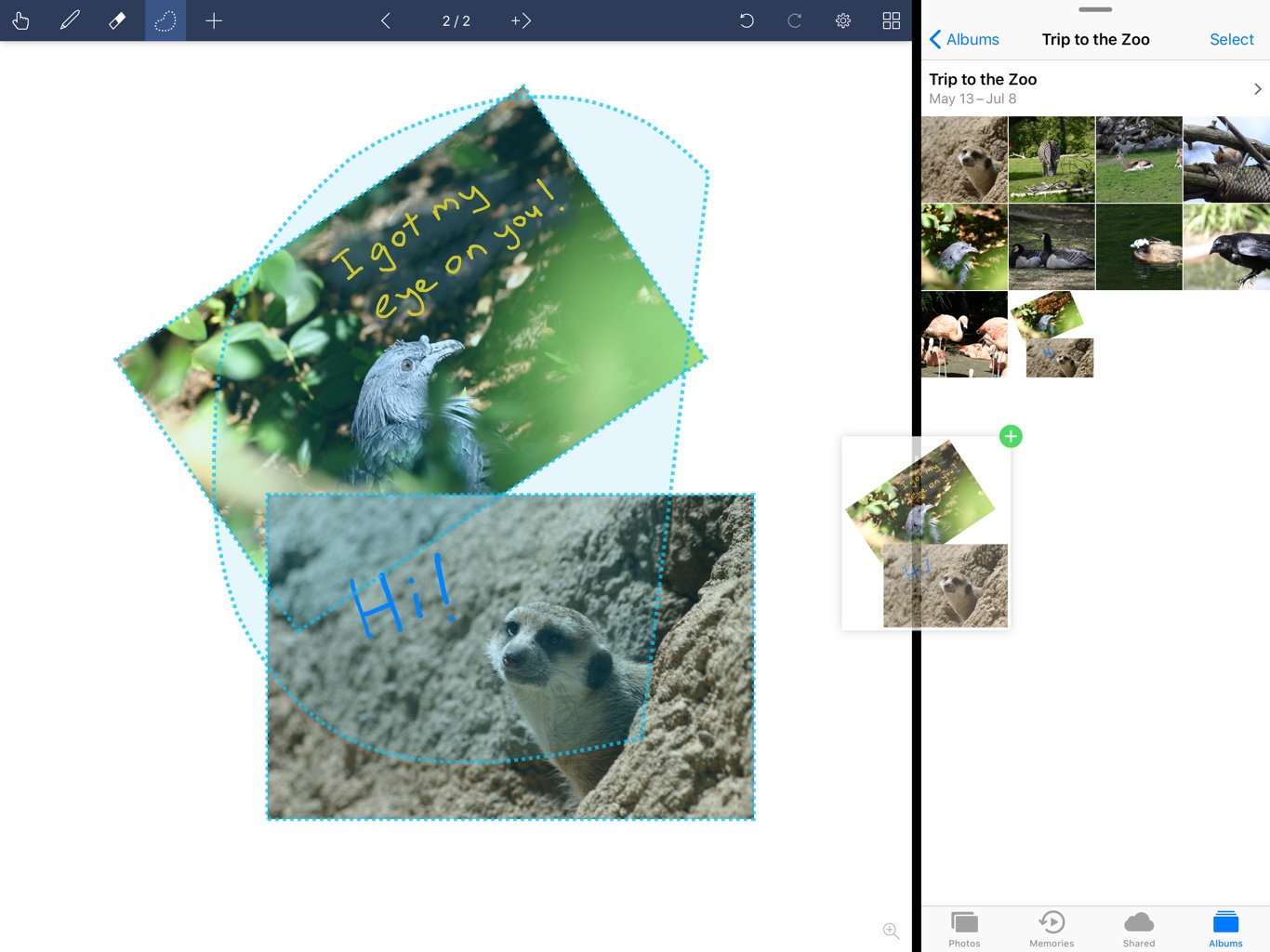
For example, open the Photos app next to Noteflow to drag multiple photos into the page at once.
You can then select a combination of photos, ink and text in Noteflow, then tap-and-hold to drag them back as a single combined photo.
Finally, A Laptop Replacement?
iOS 11 will make the iPad a true laptop replacement for more people than ever. Even fairly sophisticated multi-app workflows are now possible on an iPad, and these will become more powerful as more apps start tapping into the new possibilities.
09/20/17
Announcing Noteflow
We built Inkflow 5 years ago as a “Visual Word Processor” - a tool that lets you quickly capture ideas, and literally move your thoughts around the page.
Today, we're unveiling something even better.
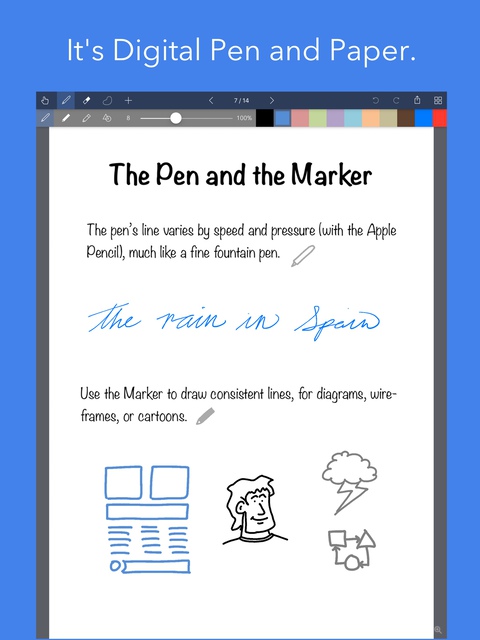
Noteflow is a completely re-engineered app designed for iOS11. Think of it as "Inkflow Pro”, and more.
All your existing Inkflow files import seamlessly, so you can continue working without missing a beat, while upping your productivity with significant new capabilities.
An iOS11 Native
iOS11 dramatically changes how files and multi-tasking works, transforming your iPad into a real productivity machine.
Because Noteflow was built specifically for iOS 11, it works the way the new OS intends.
New File System: Noteflow natively integrates with the new iOS file system. Use the folder system to organize the way you want. You can also open Noteflow files in-place from the Files app, just like on a Mac.
Cloud Sync: Choose to store your files locally or in the cloud. Simply save them to iCloud drive or other cloud storage services to automatically sync across all your devices.
Drag and Drop: You can drag ink, photos and text between Noteflow and other apps.
Multi-tasking: Coupled with the new, powerful multitasking interface, this allows you to work seamlessly across multiple apps.
Scribble a quick message in Noteflow and drop it as an image into a mail message to send.
Drag multiple photos from a Photos album into Noteflow all at once. Add snippets from websites to compose a report or document.
This ability to quickly create flexible workflows with multiple apps is what makes desktop computing powerful, and you can now do this on your iPad.
New and Improved Capabilities
Noteflow has improved all the features from Inkflow that you know and love, allowing you to work the way you prefer:
Vector ink: Noteflow lets you effortlessly select and resize ink, allowing you to work at multiple scales without losing resolution. The ink stays tack sharp no matter how far you zoom in, giving you a huge effective space to work in.
Noteflow's advanced vector ink engine has a higher tracking speed and lower latency, allowing for more natural and fluid writing. And it's even better with the Apple Pencil and new iPad Pros.
Photos: Quickly drop in photos from the camera roll or snap a picture.
Text: Add labels, or type entire paragraphs. The new text editor has an improved interface for using the on-screen or hardware keyboard.
Noteflow adds a bunch of new features on top of the basics:
PDF file import/export: Import PDF files as native, editable Noteflow documents. This is very handy for inserting class or meeting notes into your own, and is perfect for annotating documents and slides.
Color-Select: Separate individual colors. This lets you easily select and erase background colors.
Inkport gen 2: Inkport is the revolutionary technology that scans real-world drawings into vector ink. Noteflow's second-generation Inkport was re-engineered to capture more vibrant colors, like those used in whiteboard markers and technical pens, while eliminating more stray marks.
When coupled with Color-Select, you can even extract your writing from the different-colored background lines in ruled paper.
Re-color Ink: Even better, you can select your imported ink and make it all the same color.
Select-Filter: Select only ink, text, photos, or a combination.
Custom page sizes and stationery: Landscape, portrait, and everything in between. You can now easily customize the stationery background and line colors.
Monthly calendars: Create pages for any month and use Noteflow as a perpetual calendar. Great for planning ahead or setting up a space for daily doodles.
Per-book themes: Set the toolbar and background colors for each book, to remind you at a glance which project you are working on.
Zoomed writing view: Speed up writing notes with auto-advance. On your iPhone, you can use the whole screen, transforming your iPhone into an auto-scrolling writing pad.
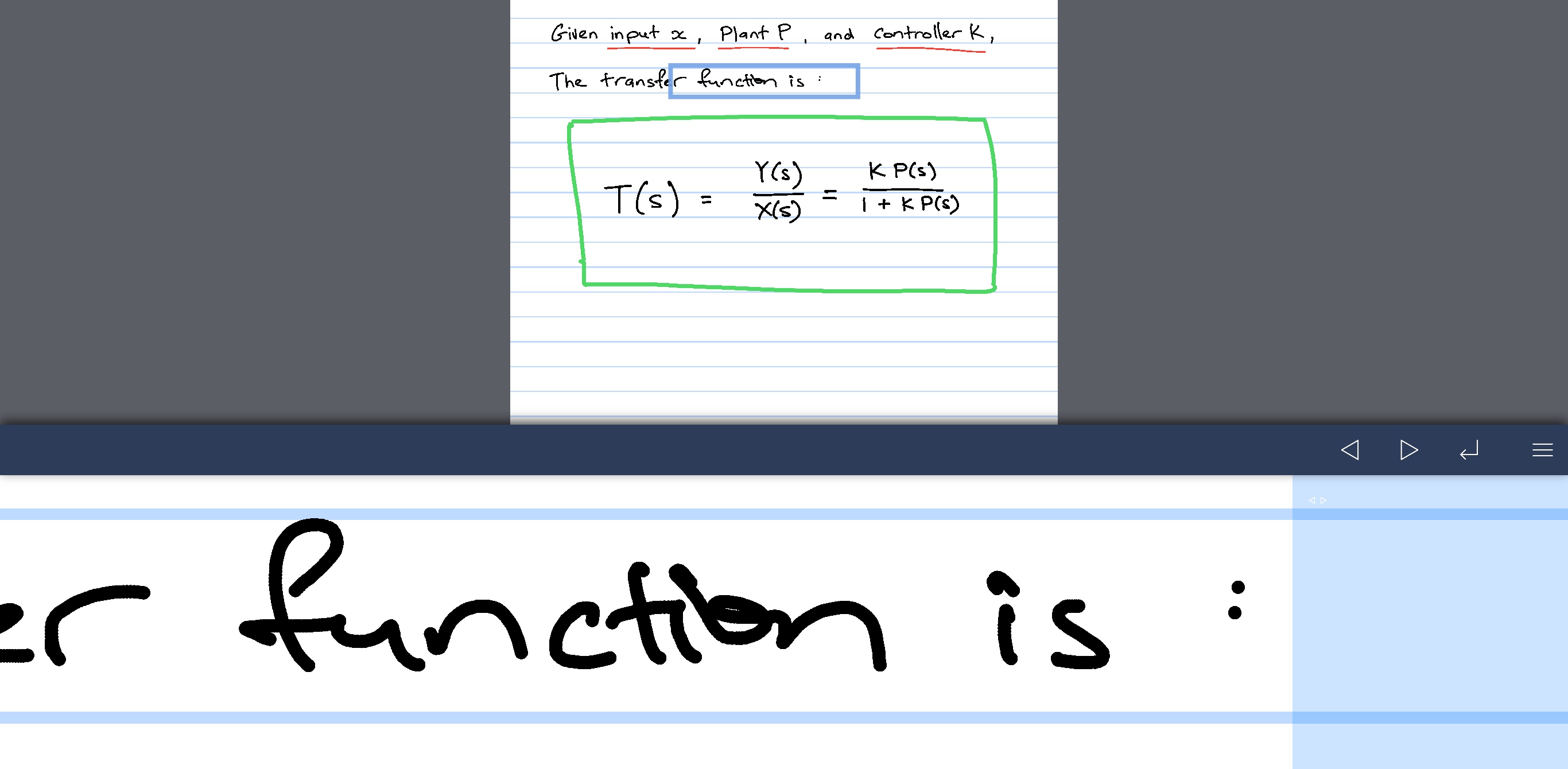
Snap-to-Grid: Makes it easy to line up pictures and text.
Straight-line Tool: Quickly draw straight lines, circles, and squares. Great for diagramming.
Improved Interface
We’ve also streamlined and improved the interface. Everything is a little neater and more compact - giving you the maximum space for your work.
There's also a new full-screen view: just swipe up the toolbar to hide it, and work with the full iPad or iPhone screen.
With Pencil-Only Drawing Mode (we need to come up with a better name for that) and in select mode, you can write with the Apple Pencil, and select using your finger.
There's additional hardware keyboard support, making it easy to flip pages and add text from just the keyboard. Hold the Cmd key to see a list of shortcuts.
You can also now tap with three fingers to undo, allowing you to do most of your work without the toolbar. Nothing between you and your thoughts.
Space for Your Ideas to Roam
Our vision for Noteflow is simple: to be digital pen and paper.
Pen and paper is, of course, useful for so many things, but particularly for the freeform capture of ideas. Noteflow captures this feeling and expands upon it.
To start with, you can do all the things you normally do with pen and paper. Take notes in meetings and class, or jot down flashes of inspirations on the go. But you can go way beyond that too:
One of Noteflow’s best uses is for "thinking on digital paper”. quickly capture key ideas and concepts, then move and organize them on the screen.
There are analogues in the physical world, such as sketchnotes or everyday working on a white board, but being able to fluidly move your ideas around the page is something you can only do digitally.
When you represent the ideas in your head with your own personal scribbles on the screen, it effectively becomes an extension of your mind - giving you more room to think.
We've designed every part of Noteflow with this in mind - to let you intuitively capture your ideas the way you like. Whether it's dropping in existing information, or quickly sketching raw ideas.
By resizing ink and zooming in, you have a huge effective canvas to work with, even on a single page.
As your ideas shape up, Noteflow has all the tools you need to tidy them up and format them to share with others.
Digital Tools
I hope you'll find Noteflow a useful part of your workflow, and that you'll discover new ways to do things with it that weren't easy before.
We're very proud of the work we've put into Noteflow, but we're also just seen the beginning of what's possible with powerful new digital platforms like the iPad.
Our goal is to craft useful tools that make the most of these powerful platforms. Tools that can help us think a little more clearly, communicate a bit more effectively, and connect with other in new and enriching ways.
Thanks for joining us on this journey!
Download Noteflow today.
Related: Noteflow.
06/12/17
Remote Board Beta 6 with Web View
Based on your feedback, you can now view boards on the web in real time.
The invite link goes directly to the web view. This means that you can invite participants who don't have an iOS device. They can follow along using their Android devices, Mac, or PC - pretty much anything with a web browser (maybe even a smart fridge?).
The web viewer is read-only, but iOS users will see a link to download the app to collaborate. We see many uses of Remote Board for presenting one-to-many, and other uses for one-to-one or small group collaboration.
But of course, the Beta is because we want to hear what you think! Do you find one mode more useful than the other?
Right now, we are evaluating if the Web View should be a standard feature, or if it will be more useful as a separate app. So, please do let us know your thoughts via the in-app or Testflight feedback form.
Thanks for participating in the Beta program!
If you have colleagues who would like to try out Remote Board, be sure to send them to the Beta signup form.
Related: Remote Board, Beta.
02/06/17
We have a brand new App for you to try out…Announcing Remote Board Beta!
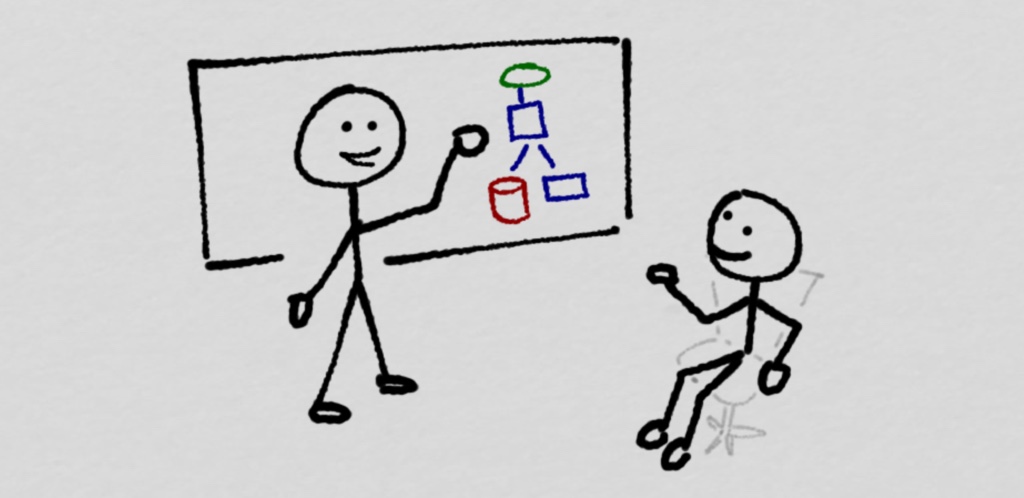
The whiteboard is one of our most powerful tools.
Nothing beats two or three people hashing out something in person with a marker in hand. The combination of talking out loud while sketching simple shapes enables a rapid and direct level of communication that's hard to beat.
But whiteboards have one big downside: they are fixed in one place. It's great when you are huddled in a small office, but what about when you are working from home, or with people hundreds of miles away?
Why, glad you asked...
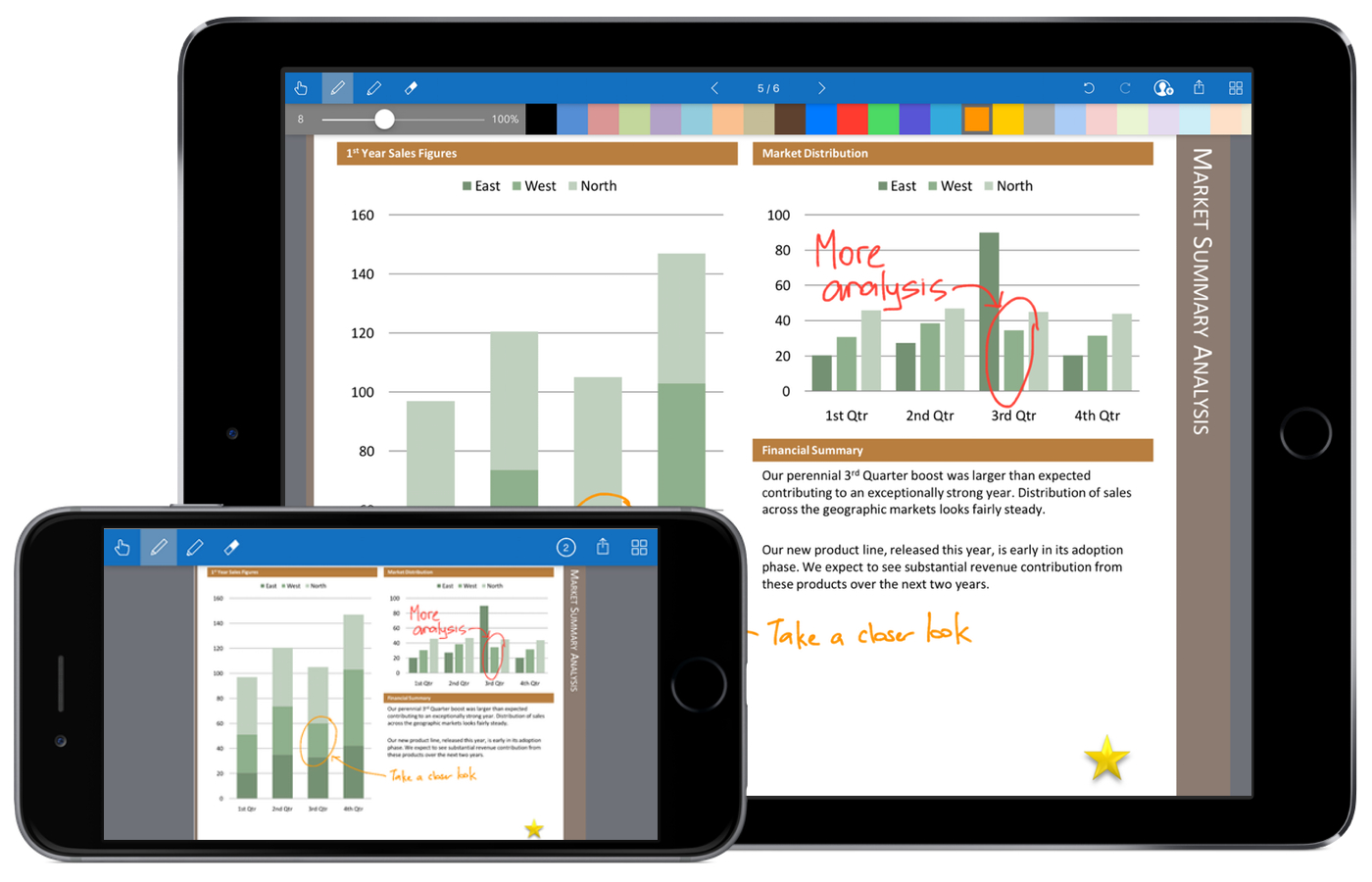
Remote Board turns your iPad or iPhone into, well, a remote digital whiteboard: invite multiple people to join, and everyone can write and draw at the same time, just like in person (but with more elbow room).
Remote Board can do a whole lot more though: drop in photos or import PDF slide decks, and annotate them in real time. Get feedback on presentations, or deliver them live to remote participants across the world.
Each board can have multiple pages, so you'll never run out of space to write. Share boards as PDF files after you're done.
Who will find Remote Board most useful?
Remote Board will be invaluable for anyone who collaborates remotely:- For reviewing presentations and documents,
- Remote tutoring and instruction,
- Storytelling,
- Visual design,
- or simply when working from home.
Go here to download the beta today.
We look forward to hearing what you think!
Related: Remote Board, Beta.
11/07/16
AirSketch Pro v2
Hot on the heels of Inkflow 5, we’ve just released AirSketch Pro 2.0 with several new oft-requested features:
Pencil-Only Drawing Mode
This feature has been well-received on Cardflow and Inkflow. We're now rolling it out to AirSketch Pro.
When an Apple Pencil is connected, there will be a new stylus button at the lower left of the screen. Tap it to enable drawing only with the Pencil, allowing you to rest your hand on the screen without creating stray marks.
Freeze-frame
Tap the new freeze-frame (lock) button to freeze the projected view.
This is great for giving your audience extra time to catch up while you prepare the next slide, or switch to a different presentation.
Line Tool
There's a new Line tool in the palette. Select it to draw straight lines and basic shapes such as rectangles and ovals.
Jump to Page
There is a new button in the page picker to jump to a specific page. This is useful for navigating large presentations.
There's also a new option in the App Settings to remember the last opened page (rather than open presentations to the first page).
Updated for iOS10
AirSketch Pro v2 also includes several minor performance improvements and internal updates for the latest version of iOS.
Your Feedback Matters
Each of these new features was requested by at least one person. While we probably won't be able to implement everything folks ask for, your input helps us prioritize the product roadmap.
At this stage, we are not planning to radically change functionality, but are rather looking at ways to make small refinements to better fit individual workflows whenever possible.
Feel free to drop us a line via our feedback from. Even if it's just some comments on how you are using AirSketch Pro in your daily work, having a better picture of this helps us plan for the future. We may not be able to respond to every request, but rest assured we do read and consider them all.
Also, if you like these updates, please take a moment to leave a rating in the App Store. Each version is rated separately. Your rating helps keep AirSketch Pro visible in the App Store and supports future updates.
Thanks!
Download AirSketch Pro 2.0 here if your app hasn't already updated automatically.
Related: AirSketch.
08/09/16
Vittle 3.6 with Video Speed Boost and Color Separation
Vittle 3.6 comes with a couple of useful new features:
Video Speed Boost
There's a new video speed setting in the scene editor. Tap it to boost the video speed by 25%, 35%, 50%, or 100%.Add a slight speed boost to give an extra little pep to longer presentations or lectures.
This setting is sticky, but doesn't change the source video, so you can change it as often as you like.
Color Separation (iPad only)
Ever get into a situation where you wish you could just select the foreground lines and move them away from overlapping a background drawing?Now, right after you lasso select ink, the Color Separation panel will appear in the lower left. Tap on individual color(s) to include in the selection. Now, further operations such as moving or resizing will only affect the selected colors.
This is pretty handy when you're using different colors to denote multiple layers of a diagram.
Tip: Tap on the canvas and tap “Select All” followed by Color Separation to quickly select all ink of a particular color.
Pencil-Only Drawing Mode
We know, palm-rejection or wrist protection has been an ongoing issue. There hasn't been a 100% perfect way to rest your hand on the screen, until now.If you have an iPad Pro with the Apple Pencil, you can now toggle on the Pencil-Only Drawing Mode using the Pencil button at the lower left.
When activated, only the Apple Pencil can be used to draw, so no more stray marks. You can continue to use your fingers to zoom, pan, or select.
Please Rate the Update!
We know that Vittle is becoming an integral part of your professional workflow. You guys are creating some very impressive presentations and publishing them to YouTube and elsewhere. The iPad Pro and Apple Pencil really are a best-in class platform for whiteboard video production. There simply isn't a better device available that we know of, at any price.We hope you like these continued improvements. If you do, please consider taking a moment to leave a rating in the App Store. Each app version is rated separately, and updates without enough ratings suffer in their discoverability, which unfortunately disadvantages lower-volume productivity apps.
If your app hasn't auto-updated already, you can download the free update from the App Store.
Related: Vittle.
07/12/16
Inkflow 5 Beta
We're making a few major changes to the Inkflow interface, and we need your input before we release it! Get the beta here.
iPad Split-Screen Multitasking
Inkflow 5 now supports split-screen multitasking on the iPad. This means you can use Inkflow while browsing the web, or watching videos, and copy-and-paste pictures from other apps on the same screen.All functions should be usable at each of the 7 different possible split-view sizes, but with certain buttons being hidden or collapsed on narrower widths.
This is made possible with a new adaptive-toolbar design which automatically shows as many buttons as possible on different screen widths.
The New Adaptive Toolbar
The adaptive toolbar also replaces the sliding toolbar on the iPhone. More buttons will be shown on larger phones.This eliminates the need to switch toolbars to access common functions, and all buttons are accessible in landscape.
The only real compromise we had to make was on the narrowest phones (iPhone 4S and iPhone SE) in portrait:

We had to remove 2 buttons, and the previous page and redo buttons were chosen because of their relatively infrequent use.
The options in the Add menu are collapsed into the Action menu when the Add button isn't visible.
To go back a page, tap on the page number and pick the previous page.
To redo, rotate the phone to landscape to access the full toolbar:

One more change is that the “left-handed toolbar" option has now been removed. In practice it didn't make a big difference, and is less relevant now with the new toolbar.
Get The Beta Today!
Overall, we believe the adaptive toolbar is a much better design than the previous sliding toolbar. However, the whole point of doing a beta is to see if you agree.Please download the beta, try it out for a few days and let us know what you think. The Beta will install side-by-side with your copy of Inkflow, and won't disrupt your current work.
Update: Thanks to everyone who participated in the Beta program. Inkflow 5 is now live in the App Store! Download it here.
Tip: Use iTunes File Sharing to transfer files across different editions of Inkflow.
Thanks so much!
07/09/16
SyncNotes Beta 2
Thanks to everyone who downloaded SyncNotes Beta, and especially those of you who sent your feedback. It's been super helpful.
We're releasing a new beta today, with a few refinements based on your input:
A Choice of Fonts
Prefer a classic serif or modern sans-serif font instead of a fixed-width one? You can now set this in the new App Settings screen from the gear icon in the lower left.You can also adjust the font size to suit your preference and eyesight.
Auto Scroll-to-End on Edit
The first thing you do when you edit a long document is scroll to the end to pick up where you left off. SyncNotes now automatically does that for you when you edit a long file that’s scrolled to the top.If you want to edit a document from the middle instead, simply scroll down first, before tapping on the text to start editing.
This is one of those features that caused us to say “why doesn't every editor do this?” the first time we tried it. We're pretty sure it's going to become the norm.
Onwards and Upwards
Beta 2 also includes a whole raft of bug fixes and other small improvements.We're still looking for new Beta testers! If you're looking for a better text editor for your iPhone or iPad, get the Beta here today.
Update: Thanks to everyone who participated in the Beta program. SyncNotes is now live in the App Store! Download it here.
Thanks so much!
Related: Beta.